How to Format an APA 7 Research Paper in Google Docs:
A Clear Citation and Formatting Guide

Formatting an APA 7 research paper in Google Docs is straightforward once you know the rules – but the rules are detailed enough that even careful writers get them wrong. This guide covers the essential formatting settings, document structure, citation conventions, and common mistakes, and shows how PERRLA's Google Docs integration handles most of it automatically so you can focus on writing.

What You'll Learn

Here's what this guide covers – and why each piece matters:

  • APA 7 formatting settings – The exact margin, font, and spacing requirements that affect every paper you submit
  • Document structure – How to organize a title page, abstract, body, and references section correctly, so your paper meets instructor expectations before you write the first word
  • Citation rules – How in-text citations and reference entries work, including the most commonly missed details
  • Headings – When and how to use APA's five heading levels to organize your argument
  • Google Docs setup – How to configure Google Docs for APA 7 compliance from the start
  • PERRLA for Google Docs – How PERRLA handles references, citations, and headings right inside your Google Doc, so you're not doing any of this manually

APA formatting errors are consistently among the most common reasons students lose points – not because of weak writing, but because the rules are detailed and easy to misapply. Research published in Frontiers in Education found that 80% of university students scored below 50% correct on an APA 7 knowledge assessment, with literal citations and reference list formatting being the weakest areas (Neubauer & Hernaiz-Sánchez, 2025).

Notably, even asynchronous training resources didn't significantly close that gap – suggesting that understanding the rules isn't the same as applying them correctly under pressure.

APA 7th Edition – Learning and Application Difficulties
A peer-reviewed study assessing 70 university students' knowledge of APA 7 found widespread gaps across all citation categories. The most common errors included missing page numbers on direct quotes, incorrect use of et al., adding publisher city in book references (an APA 6 convention), and including "retrieved from" before DOIs – all changes introduced in APA 7. The researchers concluded that explicit, targeted instruction is essential, as passive resources alone are insufficient for reliable improvement (Neubauer & & Hernaiz-Sánchez, 2025).

Essential Formatting Rules

Set these up before you write a single word. Getting them right from the start means you won't have to fix them later.

  • Margins – 1 inch on all sides (File → Page setup in Google Docs)
  • Font – 12-point Times New Roman, 11-point Calibri, or 11-point Arial – pick one and use it throughout
  • Line spacing – Double-spaced everywhere: title page, abstract, body, and references (Format → Line & paragraph spacing → Double)
  • Paragraph indent – 0.5 inches for the first line of each paragraph

If you're using PERRLA in Google Docs, none of these need to be set manually. PERRLA configures your document automatically when you start a paper.

Document Structure

An APA 7 student paper has four main components. Each has specific formatting requirements.

Title Page – Centered on the page, double-spaced:

  • Paper title (bold, title case)
  • Your name
  • Institutional affiliation
  • Course name and number
  • Instructor name
  • Due date

Student papers in APA 7 do not include a running head. This is one of the most commonly carried-over errors from APA 6 (Neubauer & Hernaiz-Sánchez, 2025).

Abstract – If required by your instructor, the abstract goes on its own page. Type "Abstract" centered and bold at the top, then write a 150–250 word summary. No indent on the first paragraph.

Body – Starts on a new page. The paper title appears centered and bold at the top. The introduction follows without a heading – in APA 7, "Introduction" is not used as a heading because the reader already knows it.

References – Starts on a new page. "References" is centered and bold at the top. Every source cited in the paper appears here, listed alphabetically by the first author's last name, with a hanging indent.

Citation Guidelines

In-Text Citations

APA 7 uses the author-date format. Every time you use someone else's idea – whether quoted directly or paraphrased – you need a citation.

The two citation formats:

Parenthetical – Everything in parentheses at the end of the sentence: (Smith, 2020)

Narrative – Author's name in the sentence, year in parentheses immediately after: Smith (2020) found that...

Rules by author count:

  • One author: (Smith, 2020)
  • Two authors: (Smith & Jones, 2020) – always include both names
  • Three or more authors: (Smith et al., 2020) – from the very first citation, every time. This is one of the most significant changes from APA 6, and one of the most commonly missed (Neubauer & Hernaiz-Sánchez, 2025)
  • Direct quotes: always include a page number – (Smith, 2020, p. 15). Missing page numbers on direct quotes is the single most common literal citation error
  • Paraphrasing: page numbers are optional but can aid clarity

Reference List Formatting

Each reference entry follows the same principle: author, date, title, source. The specific order and punctuation vary by source type, but these are the three most common.

Tip: PERRLA can create every single reference type for you (automatically). You don't have to spend any time building, updating, or correcting references ever!

Book: Last, F. M. (Year). Title of book in italics. Publisher.

Note: Do not include the city of publication. This was removed in APA 7 and is a frequent holdover error from APA 6.

Journal article: Last, F. M. (Year). Title of article in sentence case. Journal Name in Italics, Volume(Issue), page–range. https://doi.org/xxxxx

Note: DOIs are formatted as hyperlinks (https://doi.org/xxxxx) and never preceded by "Retrieved from."

Website: Last, F. M. (Year, Month Day). Title of webpage in sentence case. Site Name. https://www.url.com

Best Practices

Use headings to organize your paper. APA 7 has five heading levels. Most student papers use two or three. Level 1 is centered and bold; Level 2 is flush left and bold. PERRLA inserts all five levels correctly with a single click in the sidebar.

Proofread specifically for citations. Spell-check won't catch a missing page number on a direct quote or an incorrect et al. usage. After finishing your draft, go through every in-text citation and verify it against your reference list.

Follow your instructor's specific requirements. APA 7 is the baseline. Many instructors or programs have additional requirements. When in doubt, ask.

Format tables and figures correctly. Tables are numbered and titled above the table (e.g., Table 1). Figures are numbered and titled below the figure (e.g., Figure 1). A common error is labeling photographs as "image" rather than "figure" – in APA 7, all non-table visual elements are figures. Reference each in your text before it appears.

How to Set Up Your Google Doc for APA 7

Before you start writing, configure your Google Doc:

  • Margins – File → Page setup → set all four sides to 1 inch
  • Font – Select all (Ctrl + A) → choose 12-point Times New Roman, 11-point Calibri, or 11-point Arial
  • Spacing – Format → Line & paragraph spacing → Double
  • Paragraph indent – Format → Align & indent → Indentation options → First line 0.5 inches

Or skip all of this and use PERRLA, which handles it automatically.

How PERRLA Works in Google Docs for APA 7 Formatting

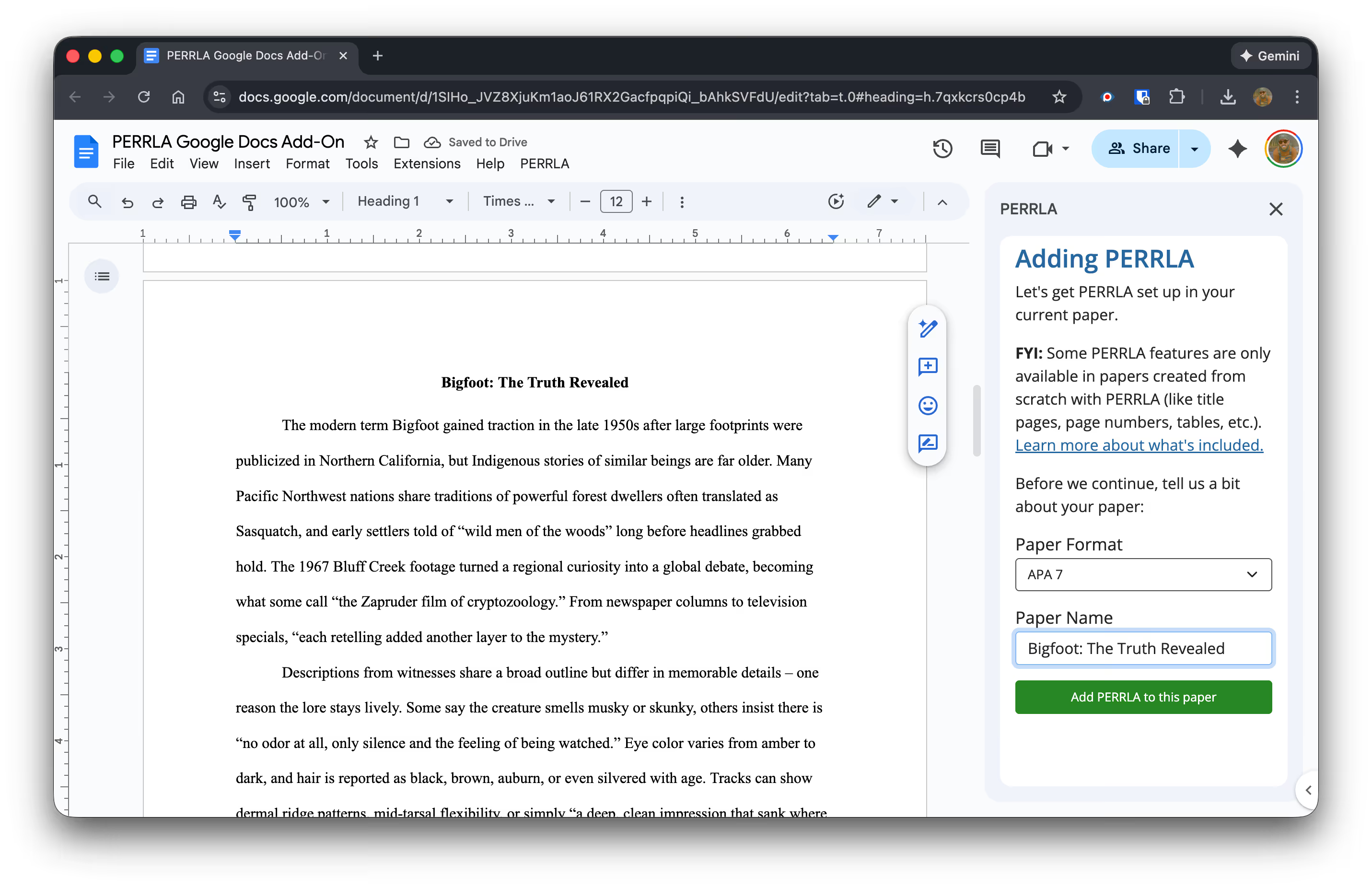
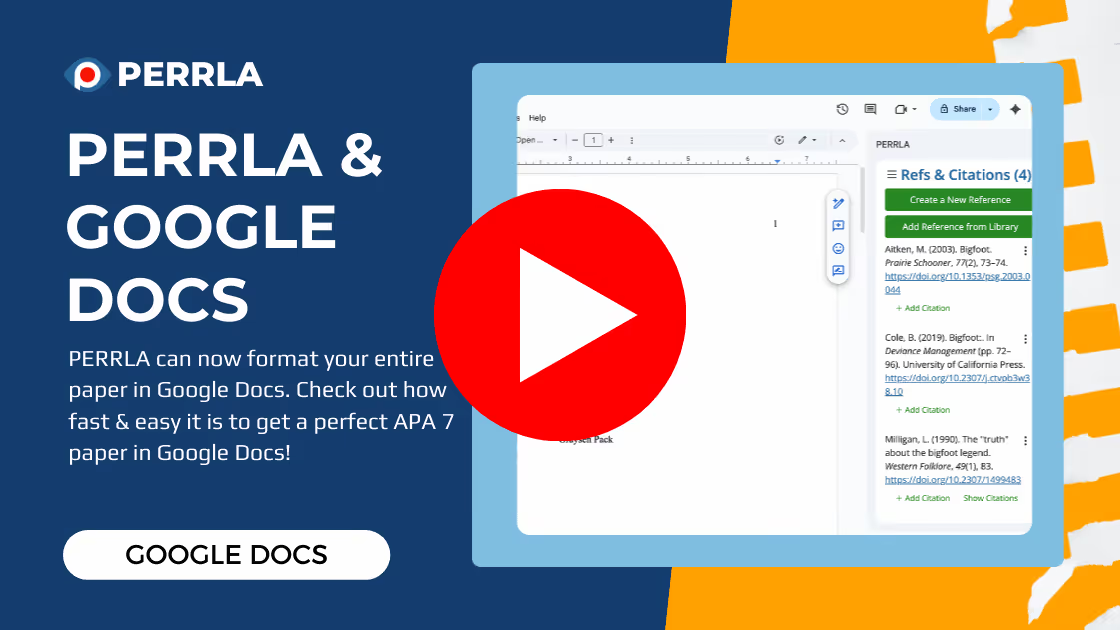
PERRLA integrates directly into Google Docs through a sidebar that stays open while you write. Here's what it does:

Adding references – Use the PERRLA sidebar to create references for any source type. For books, journal articles, and websites, PERRLA can find and fill in the bibliographic information automatically using a DOI, ISBN, or URL. For everything else, the guided Reference Wizard walks you through every required field – so you never have to guess whether the publisher city belongs in a book reference (it doesn't, in APA 7) or how to format a DOI link.

Inserting citations – Place your cursor where you want a citation, select your source in the PERRLA sidebar, and the correctly formatted in-text citation is inserted automatically. Parenthetical or narrative, PERRLA handles both. Page numbers for direct quotes are prompted so you don't forget them.

Building your reference list – As you add and cite references in PERRLA, your reference list builds automatically at the end of your document. It stays alphabetized and correctly formatted throughout. Edit a source and everything updates – including the in-text citations.

Headings – Insert any of APA's five heading levels correctly with a single click.

Downloading your paper – When you're done, download your Google Doc as a Word file – perfectly formatted and ready to turn in.

The most common APA errors identified in research – missing page numbers, incorrect et al. usage, "retrieved from" before DOIs, publisher cities in book references – are the exact things PERRLA's human-built Reference Engine prevents by design (Neubauer & Hernaiz-Sánchez, 2025). You don't have to remember what changed in APA 7. PERRLA already knows.

Why PERRLA Is a Strong Choice for APA Formatting Compared to Other Tools

Why Choose PERRLA Over Other Citation Tools and Formatting Software?

The honest answer: because free generators make mistakes that students often can't catch.

Research evaluating free online citation generators found that the most common problems were errors in capitalization, punctuation, and indentation – and that students unfamiliar with the required style were often unable to detect those errors on their own (Ho, 2022).

PERRLA is different because it manages citations inside your document – not just as text you paste into your paper (and hope for the best). The formatting is applied by a rules-based engine built specifically around APA guidelines, and everything stays synchronized as you write.

How PERRLA Improves Academic Writing Efficiency and Accuracy

Less time fixing citations means more time writing. It's that straightforward. PERRLA handles the formatting mechanics so you can focus on your argument, your evidence, and your ideas.

Feature
What It Does
Why It Matters
Automatic Citation Generation
Formats citations correctly with a few clicks
Eliminates manual formatting and reduces errors
Real-Time Formatting
Citations and references update as you write
Keeps your document APA-compliant without constant manual fixes
Word-Integrated Workflow
Everything happens inside your document
No copy-paste errors, no app switching, no formatting drift

Frequently Asked Questions

What is the difference between APA 7 and previous editions?

APA 7 simplified several citation formats, applies et al. for three or more authors from the very first citation, removed the running head requirement for student papers, eliminated publisher city from book references, changed DOI formatting to hyperlinks, and removed "Retrieved from" before URLs and DOIs. These are the most common sources of APA 6/7 confusion.

How can I ensure my APA 7 paper is free of plagiarism?

Cite every idea, quotation, or piece of data that isn't your own – both in the text and in your reference list. Use PERRLA to make sure every citation has a matching reference entry and vice versa. Unintentional plagiarism most often results from missing citations rather than intent.

Can I use online citation generators for APA 7 formatting?

Generators can help, but they introduce errors – especially in capitalization, punctuation, and handling of APA 7's specific rule changes – that students unfamiliar with the style often can't catch (Chang, 2013). Always verify generated citations against APA 7 rules. PERRLA's human-built Reference Engine is built from the APA Manual itself, which is a meaningfully different standard.

What should I do if my instructor has specific formatting requirements?

Follow your instructor's directions when they differ from APA 7 standards. Confirm any ambiguities with your instructor or writing center.

How do I format tables and figures in APA 7?

Number and title tables above the table (bold label, italic title). Number and title figures below the figure (bold label, italic title). Reference each in your text before it appears. Include explanatory notes below when needed. All photographs and illustrations are "figures" in APA 7 – not "images."

Where can I learn more about APA 7 formatting?

PERRLA's APA 101 course covers APA 7 from the ground up in short, focused lessons. The official APA Style website is the authoritative source. The Publication Manual of the American Psychological Association (7th ed.) is the definitive reference.
Conclusion

Getting APA 7 right in Google Docs comes down to consistent settings, correct document structure, and citation rules applied accurately every time. The research is clear that most students struggle with these rules even after studying them – which is exactly why tool-based support matters. PERRLA's Google Docs integration handles the formatting mechanics automatically so you can put your energy into the writing itself. Give it a try with your next paper.

Give it a try and see how much easier your next paper is to put together!

References

Chang, H.-F. (2013). Cite it right: Critical assessment of open source web-based citation generators. LOEX Conference Proceedings 2011. https://commons.emich.edu/cgi/viewcontent.cgi?referer=&httpsredir=1&article=1009&context=loexconf2011 

Ho, C. C. (2022). Free online citation generators: Which should undergraduates use with confidence? Voice of Academia, 18(2), 70–92. https://ir.uitm.edu.my/id/eprint/65509/

Neubauer, A., & Hernaiz-Sánchez, A. (2025). The APA 7th: Learning and application difficulties. Frontiers in Education, 10, Article 1551840. https://doi.org/10.3389/feduc.2025.1551840

Pick your perfect plan

Subscribe for as long as you want & save along the way
7-Day Free Trail
$0

✔️ Great for testing how PERRLA works for you

✔️ Access to all PERRLA features & software

✔️ No credit card requried!

Try PERRLA for 7 Days
Monthly
$12.95

✔️ Access to all PERRLA features & software

✔️ Great for exploring PERRLA's functionality

✔️ Our most affordable option

Subscribe Now
1 Year
$79.95

✔️ Save 50% over 12 Months

✔️ Access to all PERRLA features & software

✔️ Excellent choice for full-time students

Subscribe Now

Most Popular

2 Years
$129.95

✔️ Save 35% over 1 Year

✔️ Great value for Masters & Doctoral students

✔️ Access to all PERRLA features & software

Subscribe Now

Questions? Let's chat – real humans here

Image of students gathered around a desk

PERRLA for your institution

Ready for your students to turn in better papers? Check out our Partners page to learn how PERRLA can help your institution's students succeed.
Image of student typing at a laptop

Talk to support

Email us for a fast, clear response. Check out our Help Center for articles, tutorials, and videos on using PERRLA.
Email PERRLA Support