

When I was in school, the start of a semester always felt ambitious. Fresh notebooks, a plan for everything. And inevitably, by the third week, something had slipped – I wasn’t as organized as I wanted to be, and the weight of managing it all started pressing down.
If that sounds familiar, this summer was for you. We built tools for the whole writing process so you can walk into each paper prepared, keep your research in one place, and stay organized enough to actually do everything you’re capable of this semester.
Here’s a quick refresher on the basics, plus the three biggest things that are new.
The basics, in four steps
Create the paper. Pick APA, MLA, or Turabian and the paper type – research paper, discussion post, annotated bibliography, or reference list. Title page, margins, spacing, and headings are set before you type a word.
Add your sources. Paste a DOI, ISBN, or URL and PERRLA fills in the reference. Or click Add to PERRLA in the Chrome Extension while you’re reading in Google Scholar, PubMed, or your library database. Every source saves to your library for good.
Write and cite. In an APA or MLA paper, type ( and pick the source – the citation drops in and the references page builds and alphabetizes itself. (Hand-typed citations are the mistake we see most – they never stay in sync.)
Click I’m Finished. PERRLA checks the paper (more on that below) and exports it to Word or PDF. That’s the file you submit.
Using PERRLA for Word or Google Docs? Same four steps, just from the PERRLA tab or sidebar.
I’m Finished
PERRLA checks your paper before you download
Click I’m Finished in PERRLA Online and PERRLA now checks the whole paper against the format rules: a citation sitting after a period, a quote missing its page number, a reference nothing cites, a stray contraction. Each finding has Go to, most have a one-click Fix, and repeats get Fix all. It’s a second pair of eyes, not a gate – you can always download anyway.
We’re bringing this feature to the I’m Finished panel in Word and Google Docs soon.
Writing in PERRLA Online
What you see is what prints
The editor in the app shows your paper as real pages, so what’s on screen is what comes out. A navigation panel jumps you between headings, word and page counts update as you type, and autosave keeps a local backup plus a history of recent saves. It works fully from the keyboard and with screen readers.
Also new: LaTeX equations with a live preview, and pasting from anywhere without dragging the old formatting in.
Notes straight from the source
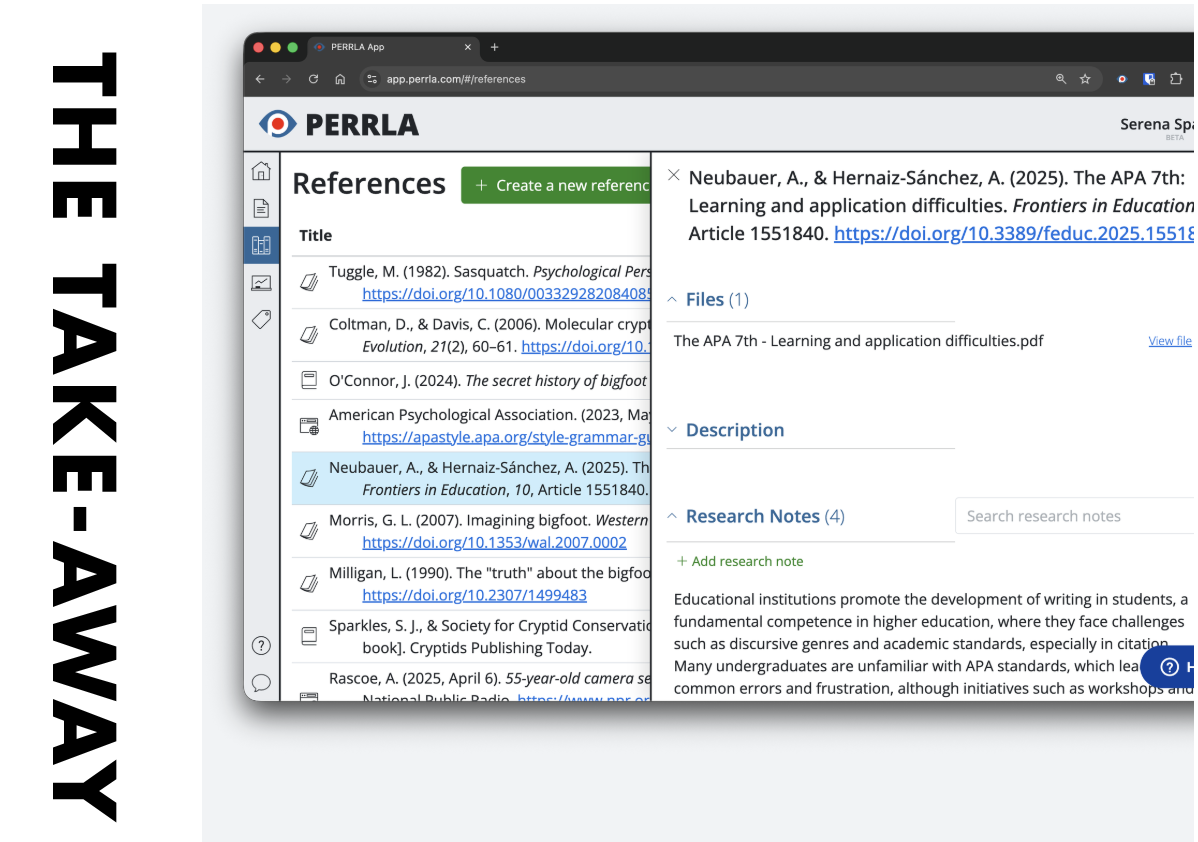
Read and take notes inside PERRLA
Open a source PDF inside PERRLA and highlight as you read. Each highlight becomes a note card with the page number attached, and that page number comes along when you cite from the note.
Tag notes with #tags and link them to other sources with @mentions. Export the clean PDF, the PDF with your notes, or just the notes. Works on a desktop or laptop.
It’s easier than ever to get your research and notes directly into PERRLA.
Coming from Zotero?
If you’ve spent semesters building a research library in Zotero, you don’t have to leave it behind. Connect your account once – it lives in Settings → Integrations and takes about two minutes – and your whole library comes over: references, attached PDFs, notes, highlights with their color and place on the page, tags, and collections. Importing never deletes anything from PERRLA.
And it isn’t one-and-done. The connection stays active, so when you add sources in Zotero next month, just click Import again – PERRLA checks your library and brings over only what’s new or changed, no duplicates.