

If you’ve been building a research library in Zotero, you no longer have to leave it behind when you write in PERRLA. PERRLA now connects directly to Zotero – bringing your references, files, notes, and annotations over to PERRLA in one import. Every reference, file, and note comes over one-to-one.
Here’s how it works.
Connecting Zotero to PERRLA
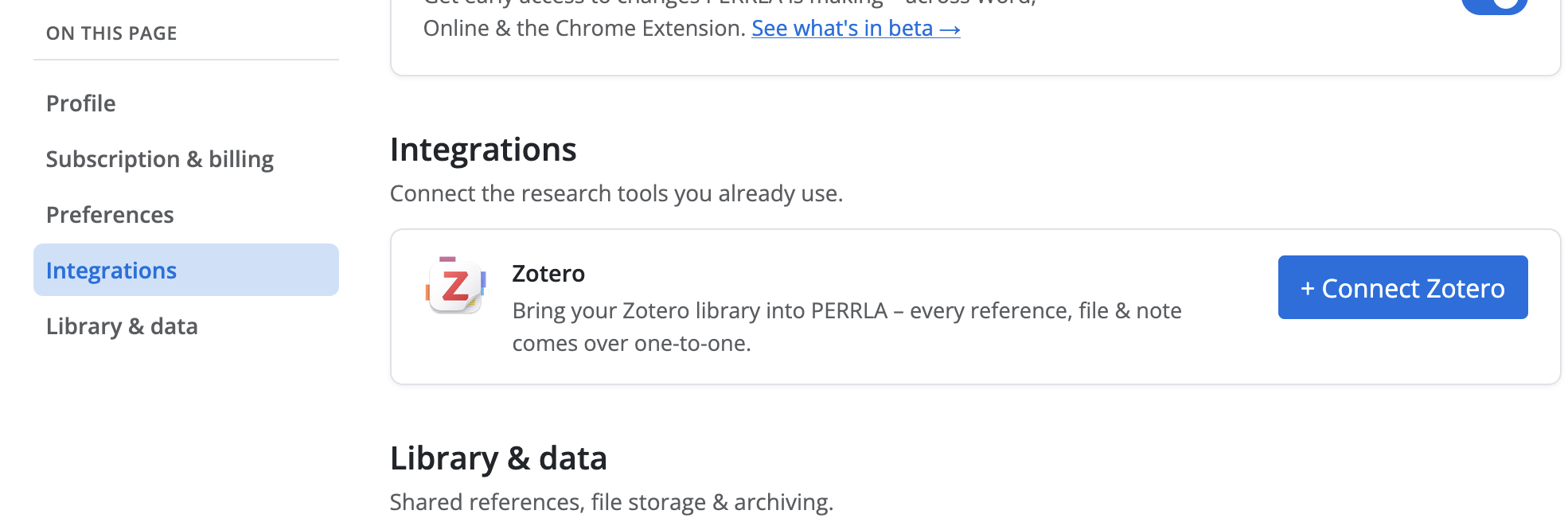
The connection is set up from your PERRLA account settings. Log in at perrla.com, click Account Settings, and navigate to Integrations, either by scrolling down or clicking it in the left-hand menu. There you’ll find the Zotero integration with a +Connect Zotero button.
Clicking the button takes you to Zotero’s own website, where you’ll log in to your Zotero account (if you aren’t already) and approve the connection on Zotero’s authorization page. That’s the only decision you make: there’s no library picker, no configuration, no options to set. Once you approve, you’re brought back to PERRLA automatically, and the import starts.
What the import looks like
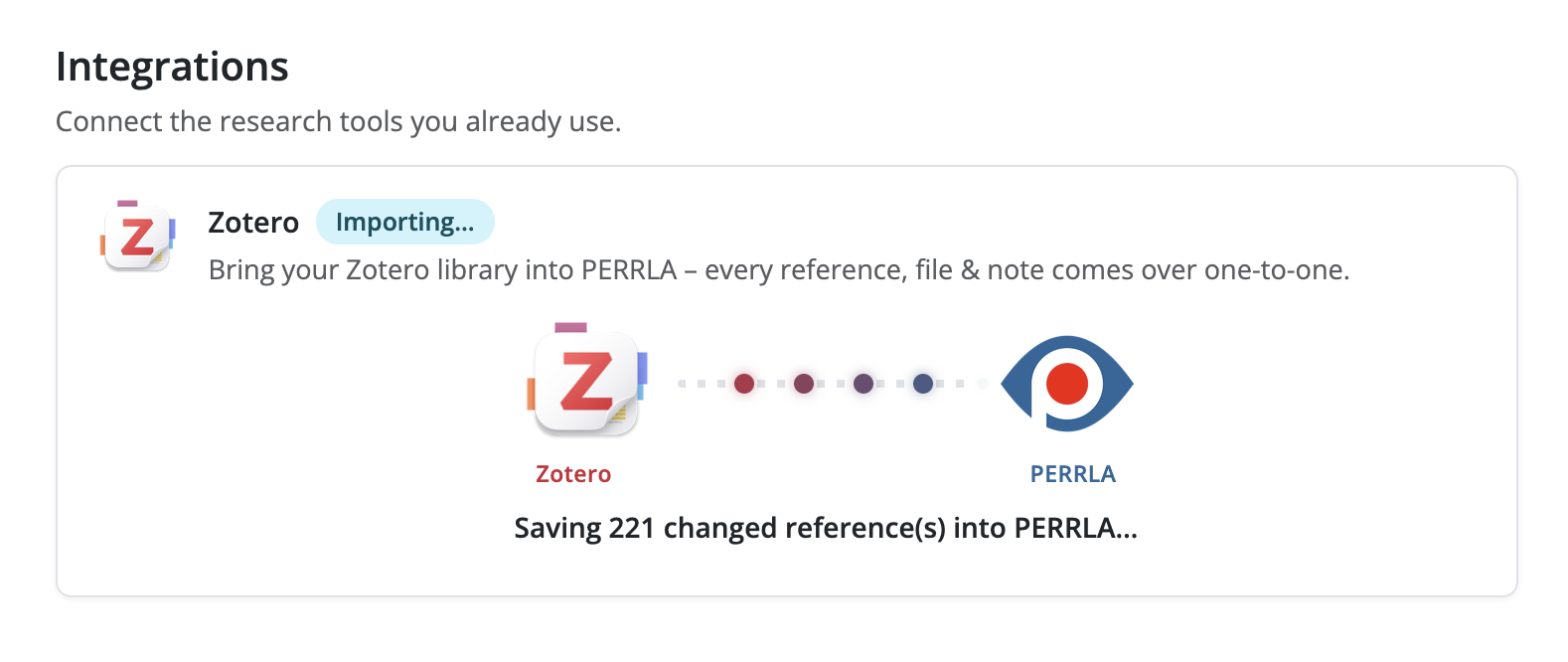
PERRLA walks you through the import with a live progress view, narrating each phase as it goes: pulling your library from Zotero, saving references, bringing files across. When it finishes, you get a results summary – tiles showing how many references, files, and notes were imported, along with tags and collections added.
For larger libraries with many attached files, the first roughly 50 files download while you watch. Anything beyond that continues importing in the background on PERRLA’s servers, even if you close the tab. PERRLA shows you an estimated finish time and lets you know it’s safe to leave the page.
What comes over from Zotero
- References – full bibliographic data, mapped into PERRLA’s reference formats, and ready to cite immediately. If a reference already exists in your PERRLA library (matched by DOI, ISBN, or title), the import links them rather than creating a duplicate.
- Files – PDFs and other attachments stored in Zotero come over and attach to the correct reference in PERRLA.
- Notes – notes attached to references in Zotero become Research Notes on those references in PERRLA. PDF annotations – highlights and comments made inside Zotero’s PDF reader – come over, too, keeping their color and page position so they appear correctly in PERRLA’s Reference Annotator.
- Tags – Zotero tags become PERRLA tags on the corresponding references.
- Collections – Zotero collections, including nested sub-collections and which references belong where – come over as PERRLA Collections. PERRLA Collections are currently in Beta and will be released soon.
Updating your library after the first import
The Zotero connection stays active after the initial import. If you add references in Zotero later, updating PERRLA is one click – no re-login, no re-authorization. Just come back to Integrations in your account settings and click Import again.
The re-import is efficient – it checks your entire Zotero library but only brings over what’s new or changed since last time. Unchanged references are left alone. If nothing has changed, you’ll see a note confirming that your library is already up to date.
Importantly, importing never deletes anything from PERRLA. Removing an item from Zotero does not remove it from PERRLA, and disconnecting Zotero leaves everything that was already imported in place.
A few things worth knowing
- Personal libraries only. The import reads your own Zotero library. Group libraries do not transfer; however, if you’d like to import a group library, you may export it from Zotero as a .bib file and then upload that file directly to PERRLA.
- Stored files only. Files that Zotero actually stores – like PDFs saved in Zotero storage – transfer correctly. Linked files (pointers to files on your own computer) and web page links can’t come over since Zotero doesn’t host them. If you have linked files you'd like in PERRLA, you can upload them manually to the Files section of the corresponding reference in your PERRLA Reference Library.
- Standalone notes are skipped. Zotero notes that aren’t attached to any reference don’t import, since PERRLA’s research notes live on a reference. Notes attached to references all come over.
- Miscellaneous reference types get flagged for confirmation. Zotero uses a catch-all “Miscellaneous” type for references that don’t fit its standard categories. Because PERRLA supports every reference type, any Miscellaneous references that come over will be tagged “Needs Review.” PERRLA will ask you to confirm the reference type so it can format them correctly. Nothing is lost, it just needs one more look.
Ready to make the move?
If your research lives in Zotero, connecting it to PERRLA takes about two minutes. Log in at perrla.com, go to Account Settings, and click +Connect Zotero. Everything follows.
Not using PERRLA yet? Try it free for 7 days – no credit card required.