If your school uses Brightspace, Canvas, or Blackboard, you can now use PERRLA right inside your course without switching tabs. The new PERRLA extension for Google Chrome and Microsoft Edge puts a PERRLA button directly in your discussion board and on your assignment pages, so your citations and papers are always one click away.
Here’s what it does and how to get started:
How to Get the PERRLA Extension
Add the PERRLA extension to Chrome or Edge from the browser’s extension store. Sign in with your PERRLA account, and you’re done – no setup required on your school’s end. The extension works on its own, inside any supported learning management system, as long as your PERRLA subscription is active.
The extension works with Brightspace, Canvas, and Blackboard Ultra. It does not work with Blackboard Original or Moodle.
Using PERRLA on a Discussion Board
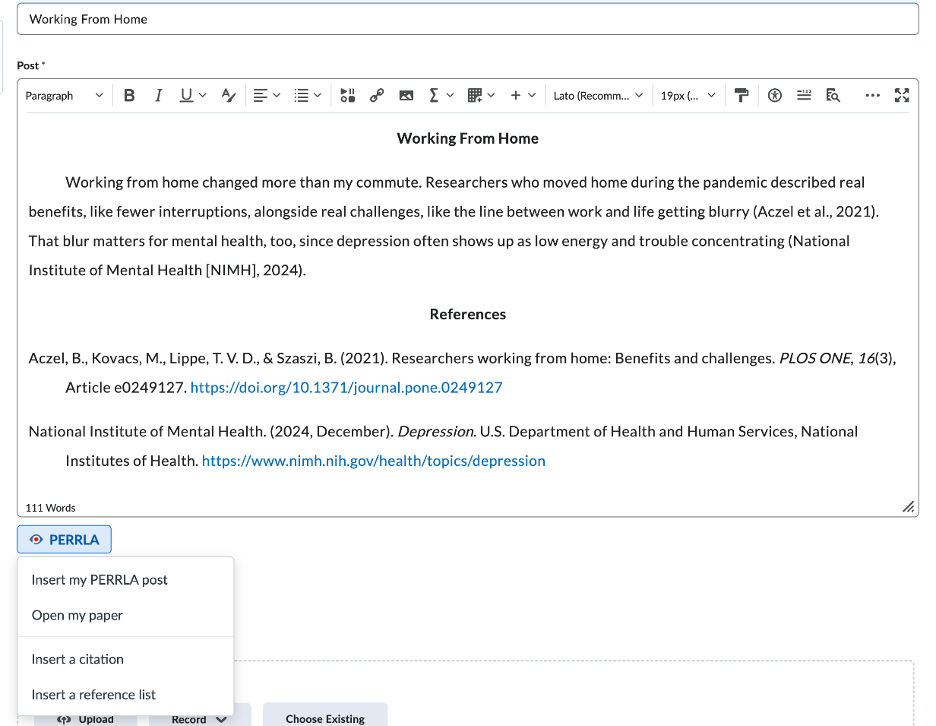
When you open a discussion in Brightspace, Canvas, or Blackboard Ultra, you’ll see the PERRLA button right below the reply box and below the box for starting a new thread. Click it, and a side panel opens with four options.
Insert My PERRLA Post
If you write your discussion post in PERRLA, this drops it in at the cursor – title, body, and reference list, already double-spaced with a half-inch first-line indent. In Brightspace, it also fills in an empty Subject line with your post’s title automatically.
Note: Blackboard Ultra formats the post double-spaced without indents, since its editor doesn’t support them. Everything else comes over exactly as formatted.
Insert a Citation
Search your PERRLA library and drop an in-text citation wherever your cursor is. The reference is added to a References list at the bottom of your post, kept in alphabetical order.
Tip: Click in your post where you want the citation to appear before you click the PERRLA button. The citation drops in at your cursor.
Insert a Reference List
If you want to add a formatted reference list without going through a full PERRLA post, you can select specific references from your library and insert just the list.
Write This in PERRLA – Open My Paper
Start a new discussion post directly in PERRLA from the discussion board, or jump back to a post you’ve already started. Longer posts with multiple citations are much easier to build in PERRLA and then insert. The formatting comes over automatically.
Using PERRLA on an Assignment Page
Assignment pages work a bit differently. The PERRLA button appears in the submission area – next to the file upload button in Brightspace and Canvas, or on the attempt page in Blackboard Ultra.
Write This in PERRLA
Click this to create a new paper directly from the assignment. PERRLA pulls in the assignment title, your default format (APA 7, MLA 9, or Turabian 9), and the due date. The assignment’s instructions and rubric land in the paper’s Outline tab so you have everything in one place while you write.
The assignment type determines what gets created: a file-upload assignment becomes a research paper, and a text-entry assignment becomes a discussion post. The paper is fiied in a PERRLA Class named for your course.
Note: In Brightspace and Blackboard Ultra, your instructor’s name may not come through automatically, so PERRLA pulls in the course and due date rather than the teacher’s name.
Attach My PERRLA Paper
When your paper is ready, click Attach My PERRLA Paper. PERRLA adds the paper as a Word file – named with your paper’s title – to your submission. You still click Submit yourself. Nothing posts or submits on its own.
Tip: Open your paper in PERRLA and run its checks before you attach it. Attaching sends the paper as it is.
What Stays the Same
The extension doesn’t change how PERRLA works. It just brings it closer to where you’re already working. Your papers, references, and classes are all still in PERRLA. You can still open PERRLA on its own at any time. The extension is an addition, not a replacement.
You’re also always in control of what gets submitted. The extension inserts and attaches, but it never posts or submits anything on your behalf.
Try PERRLA Free for 7 Days
If you’re not already using PERRLA, the extension is one more reason to give it a try. PERRLA formats papers in the APA 7, MLA 9, and Turabian 9 formats, and now it works right inside Brightspace, Canvas, and Blackboard Ultra.
Start your free 7-day trial at perrla.com. No credit card required. Plans start at $12.95/month, $79.95/year, or $129.95 for two years. Institutional pricing is available at $9.95 per student per year.