

If you’ve ever juggled references, papers, and research files across multiple courses or a long-term project, you already know the problem: everything is everywhere, and finding the right thing at the right time takes longer than it should.
PERRLA Collections gives you a way to organize everything into project-specific containers that you build and arrange your way. Here’s how it works.
What is a Collection?
A Collection is a container in PERRLA Online that holds the items relevant to a specific project, course, or topic. A Collection can include:
- Papers
- References
- Files (PDFs and other attachments from your PERRLA Reference Library)
You might create a Collection for a semester-long capstone project, a single course, a dissertation chapter, or any group of work you want to keep together. Collections don’t move or copy items – they organize them. An item can belong to more than one Collection at the same time without being duplicated anywhere.
Creating a Collection
Collections lives in the left sidebar of PERRLA Online. To create a new one, click the green +New Collections button at the top of the Collections page, or click +New collection at the bottom of the left panel. Give it a name, and you’re done.
Once a Collection exists, you can add items to it using the +Add items button inside the Collection. Items are filtered by type – Papers, References, and Files – so you can quickly find what you’re looking for and add it with a click.
And remember, if you have Collections inside Zotero, they can be imported into PERRLA in just a few steps.
Nested collections for complex projects
Collections can be nested inside other Collections, making them ideal for larger projects with multiple parts. A dissertation, for example, might have a parent Collection called “Dissertation” with sub-collections for each chapter with each sub-collection holding the papers, references, and files specific to that section.
To create a sub-collection, drag a Collection onto another in the left panel to nest it inside. You can also right-click (or use Shift+F10) for Move options. Drag Collections up or down in the panel to reorder them however makes sense for your workflow.
Inside a Collection, the Include subcollections toggle lets you see all items from nested sub-collections in a single view – useful when you want the full picture of a project without switching between panels.
What you see inside a Collection
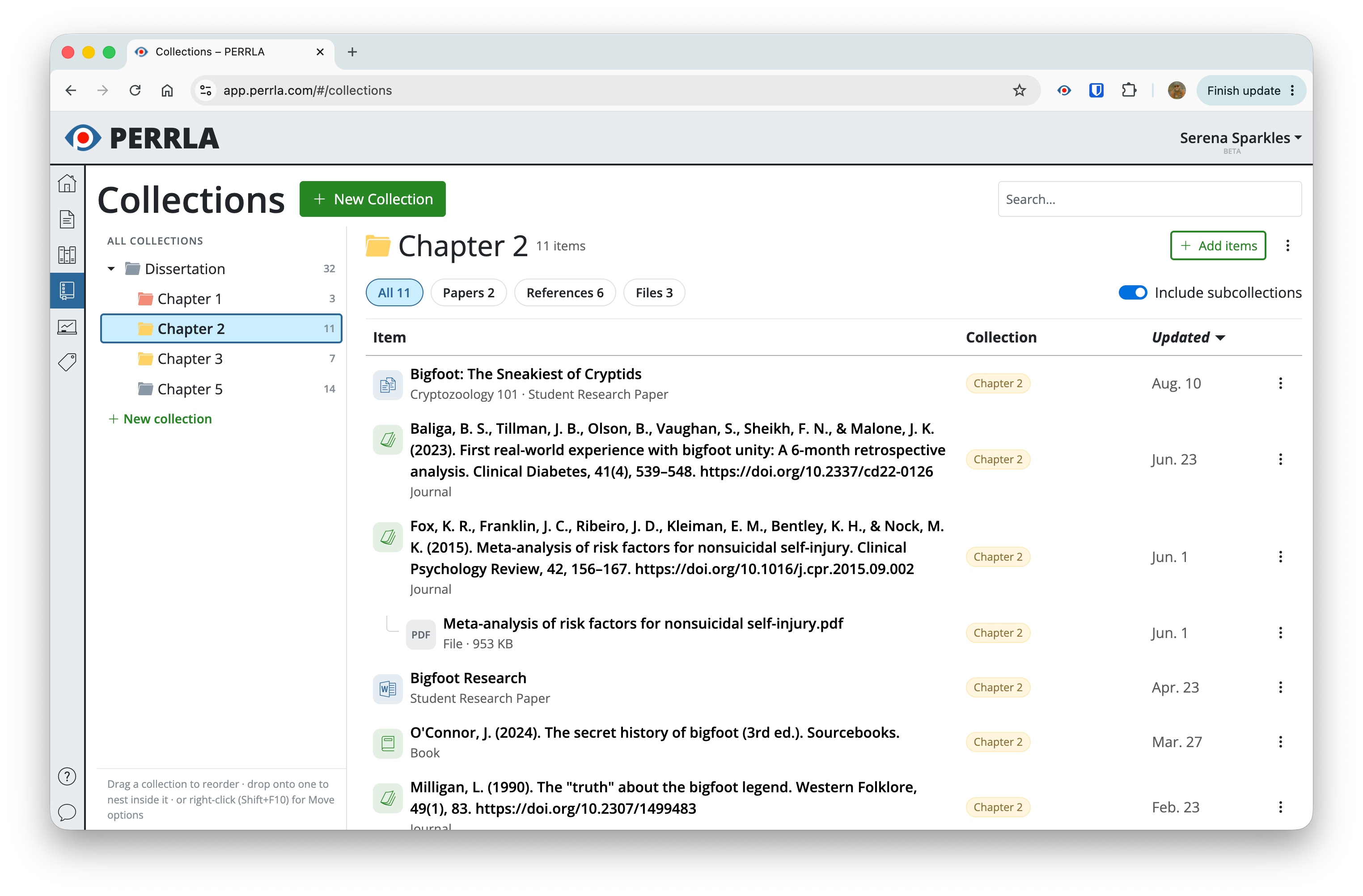
Each Collection shows a count of its items and lets you filter the view by type: All, Papers, References, and Files. Items display their type, which Collection they belong to, and when they were last updated. The three-dot menu on each item gives you additional options for managing it.
A search bar at the top of the Collections page lets you search across all your Collections at once when you’re looking for something specific.
Color-coding your Collections
Each Collection gets a color-coded folder icon – a small visual cue that makes it easier to tell Collections apart at a glance, especially when you have several. You can assign colors when you create a Collection or change them at any time.
Removing vs. deleting
An important distinction worth knowing: removing an item from a Collection takes it out of that Collection but leaves the item itself intact in PERRLA. Deleting an item removes it from PERRLA entirely. Collections let you organize without risk – you can remove something from a Collection anytime without losing the underlying work.
Archiving Collections at semester’s end
When a project or semester wraps up, you can archive a Collection rather than deleting it. Archived Collections move out of your active view but stay in PERRLA, so everything is preserved if you ever need to refer back to it. It’s a clean way to close out a semester without losing anything.
How to access Collections
Collections is available now in PERRLA Online. Look for the Collections icon in the left sidebar – it’s accessible from any page in PERRLA Online. Every PERRLA subscription includes access to PERRLA Online.
Not using PERRLA yet? Try it free for 7 days – no credit card required.