A New Look for PERRLA Online (and Your Citations Are Just Text Now)
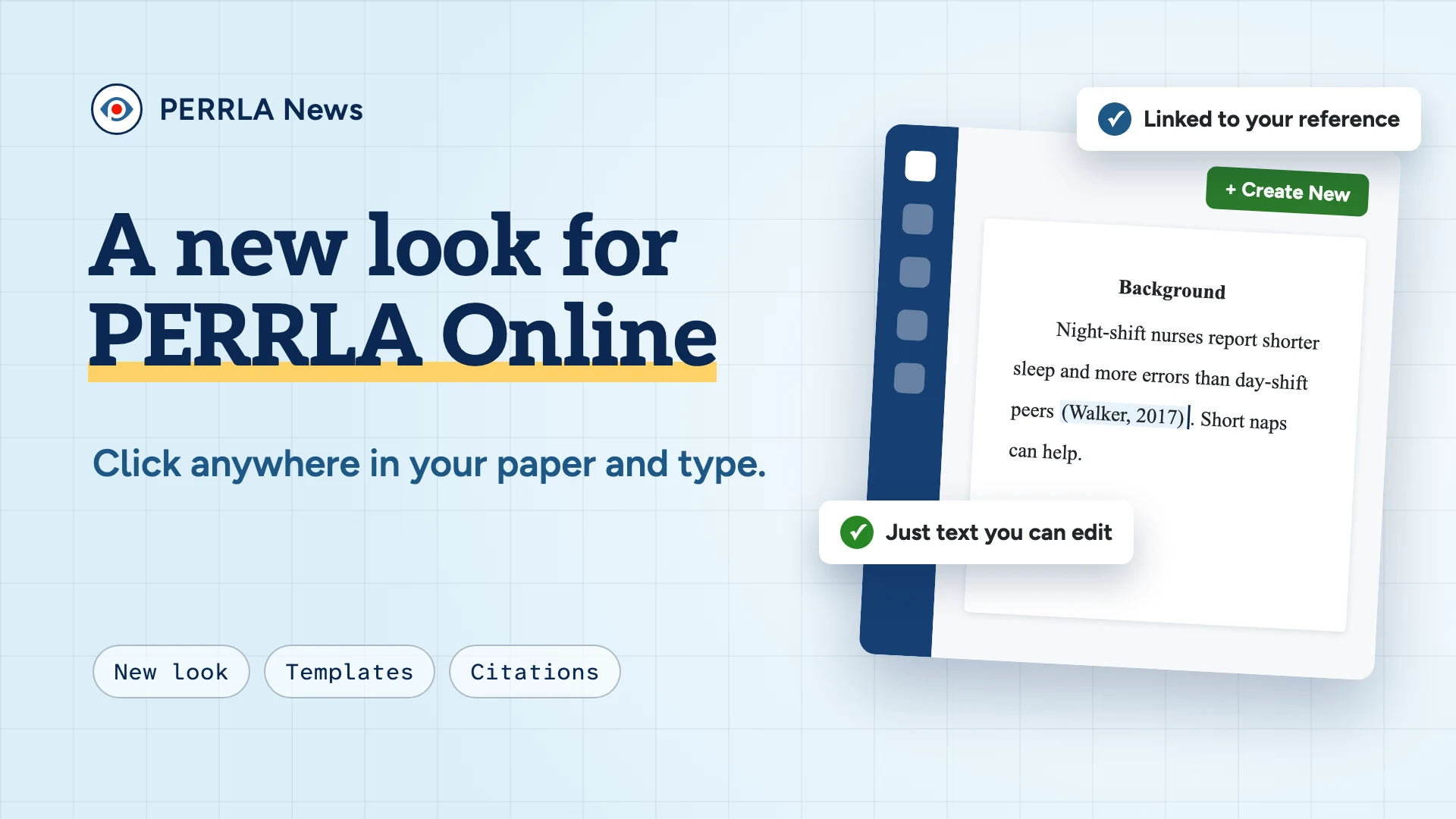
PERRLA Online's new look is in Beta now, and it reaches everyone in late December: one menu, templates you can build yourself, a cleaner reference library, and new papers where every citation is plain text you can click into and edit.
G
Graysen @ PERRLA · Published November 11, 2026
PERRLA Online has a new look, and you can try it today. It's in Beta right now, and it rolls out to everyone in late December.
Your papers and references are all still here (nothing moved out of your account), but a lot of things moved around inside it. And there's one bigger change for new papers: your citations are just text now.
Want it now? Go to perrla.com, click Login in the top-right, and choose Account Settings. Under Preferences, switch Beta features on, then refresh PERRLA. Beta features turn on across Word and Google Docs too, and you can switch them off any time to go back. (Step-by-step help)
Here's what's new.
Where everything went
This 2-minute video walks through where things moved. Everything in it is also written out below.
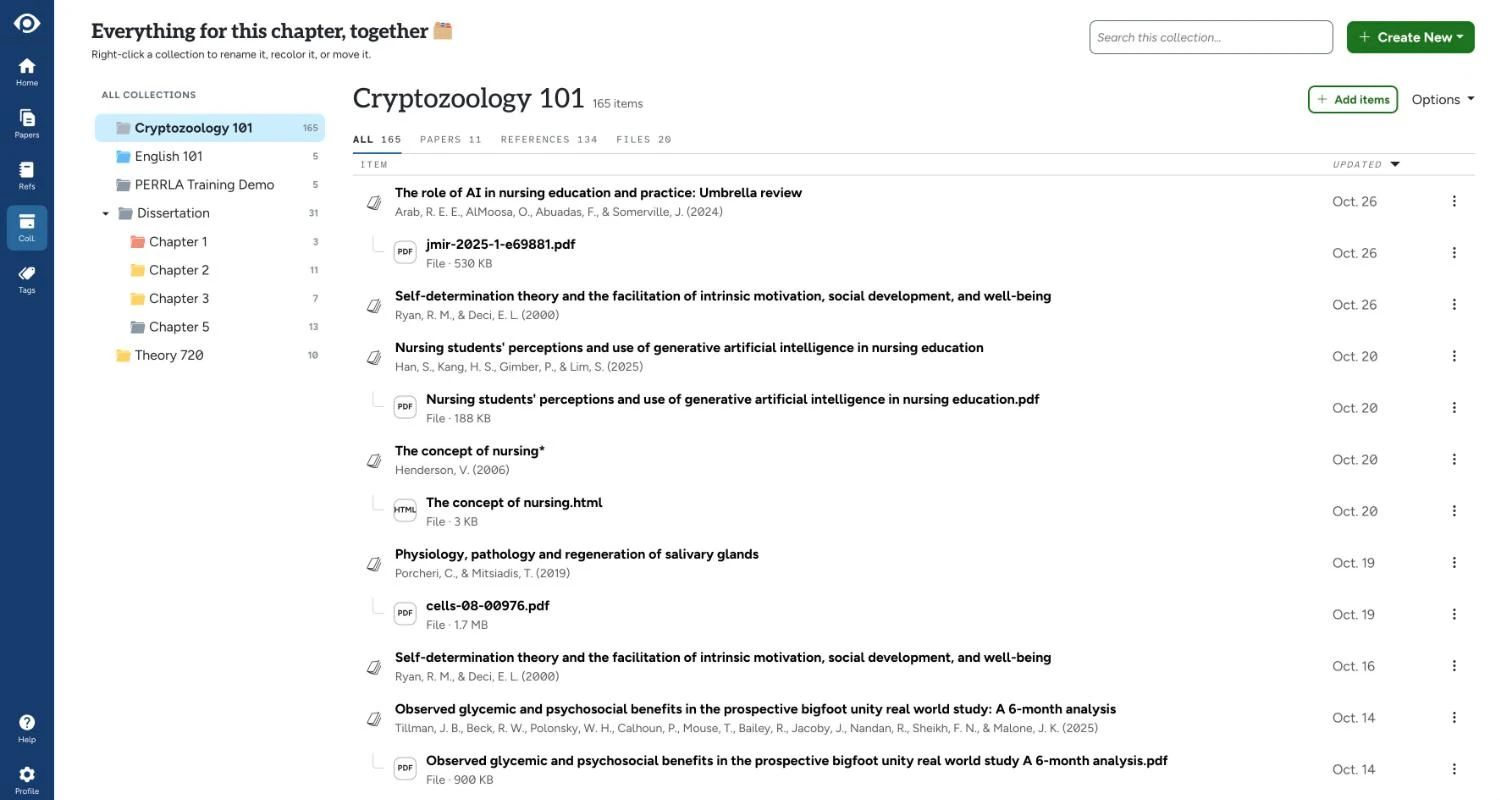
One menu on the left. Home, Papers, References, Collections, Tags, and Help all live there. Click your profile at the bottom to find Settings.
One green button to start anything. Create New starts a paper, a reference, a collection, a tag, or a template.
Search on every page. The search box sits at the top of every list.
A new Home page. Your most recent papers sit beside a drop box. Drop in a PDF, a .bib file, or a library export (.zip) to add references.
Light or dark. Switch from your profile menu.
Built for phones. On a phone, the menu moves to a bar along the bottom of the screen.
The first time you visit each spot that changed, a short guide points out what moved.
Your citations are just text now
Until now, PERRLA kept every citation and reference inside a locked box. That's how it kept track of which source each citation belonged to. It also meant you couldn't click into a citation and change it like the rest of your sentence.
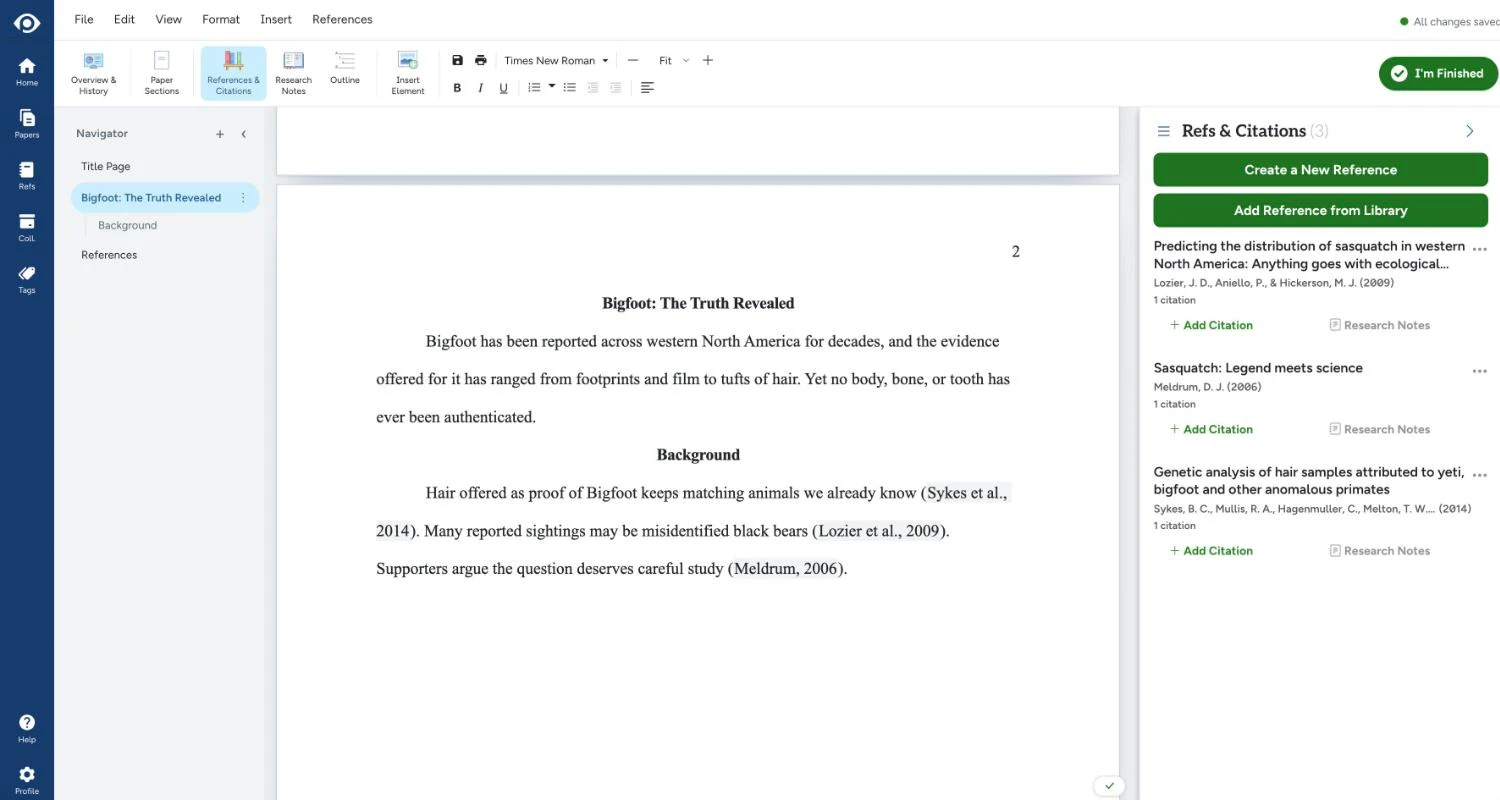
In a new paper, that's gone. Click and type anywhere, even the title page, your citations, and your reference list. PERRLA still keeps up with the formatting for you. And if you type a citation by hand for a source that's already in your paper, PERRLA connects it to that reference on its own.
Papers you've already written stay exactly as they are. Nothing about them changes unless you start something new.
Collections and templates
Classes are now split in two, because they were doing two jobs:
A collection holds your papers, references, and files for a class or a project.
A template holds your title page details and how your paper is set up.
When you create a paper, pick the type first, then a template. Student Paper and Professional Paper are always at the top of the list.
A few things you can do with templates:
Make your own. Set the title page details, headings, and sections, and drag the sections into the order you want. A template can set your page margins and turn the running head on or off too.
Start from a Word document. Drop in a .docx (like one your instructor gave you), and PERRLA fills in its margins, font, sections, and headings for you to check. The file stays on your computer.
Save a paper as a template. In any paper, click File, then Save as template.
Connect a template to a collection. New papers made from that template join the collection on their own.
Your references, easier to skim
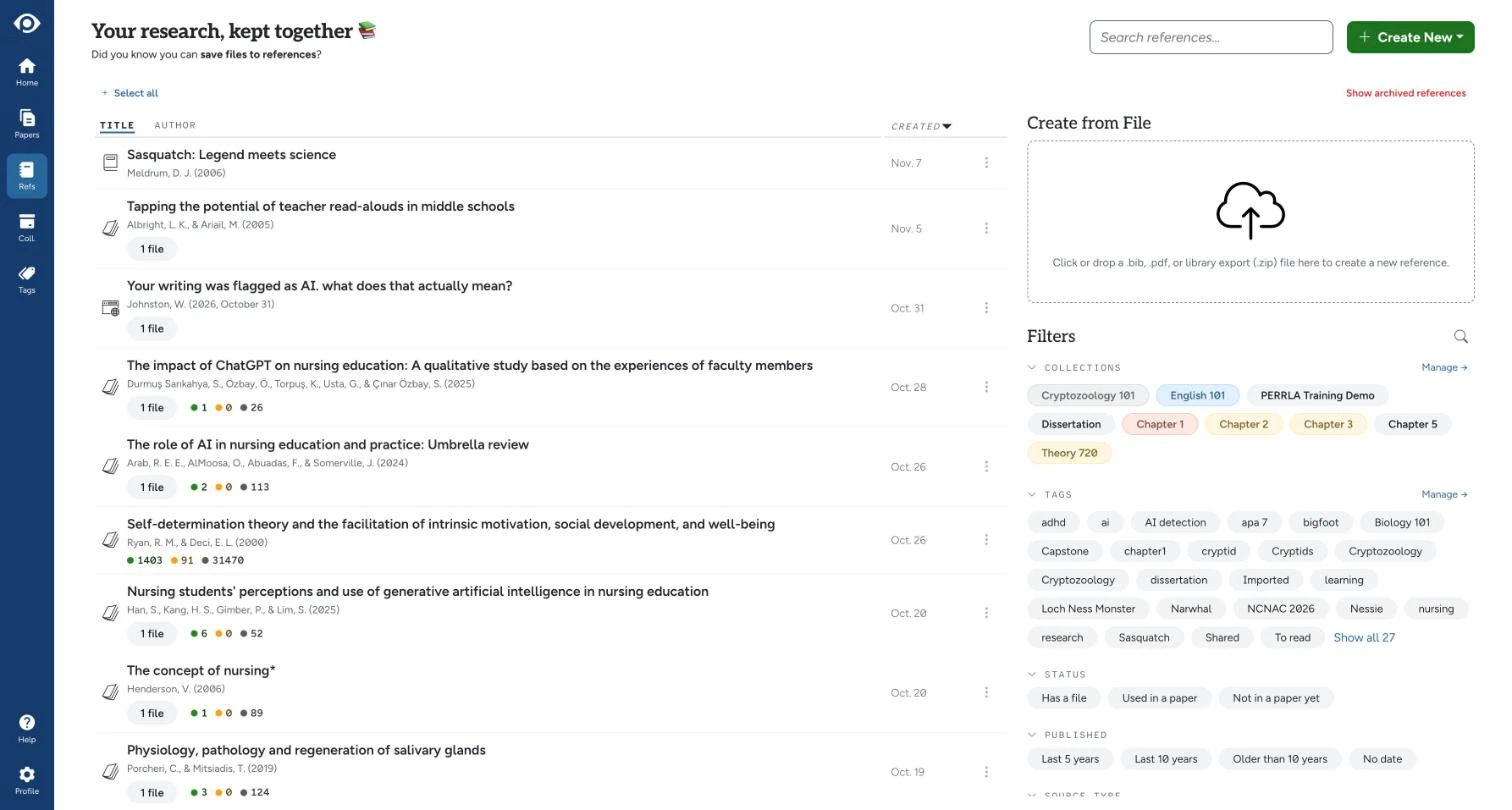
Each reference shows its title, authors, and date. Hover over one to see it in full.
Sort and search. Sort by title or by author, and your search words are highlighted as you go.
Filters. Narrow your list by status (has a file, used in a paper, not in a paper yet, retracted), by when it was published, and by source type.
Retraction alerts. PERRLA checks the journal articles in your library against the Retraction Watch database and flags any that were retracted, corrected, or given an expression of concern.
scite Smart Citations. See how later research cites each source: supporting it, contrasting with it, or just mentioning it.
You can turn off retraction alerts (Settings, under Library) and scite (Settings, under Integrations) if you don't want them.
Writing your paper
Your paper's tabs moved into the ribbon. Overview & History holds your paper's details, its Writing Timeline, and its saved versions. Outline is up there too.
I'm Finished. The big green button is where you check, download, print, or email your paper.
Paper Sections. One button holds your title page, abstract, table of contents, appendices, and every other section. Drag them into the order you want.
Insert Element. One button adds figures, tables, equations, and code blocks.
Instructions. Paste your assignment's prompt or rubric into Instructions (under View) and keep it beside your paper while you write. You can add checkboxes to tick off as you go.
Find and Replace. Press Ctrl+F (Cmd+F on a Mac). Citations and reference entries are skipped, so they stay connected to your references.
Footnotes right on the page. In a Turabian paper, click a footnote at the bottom of the page and type.
Page margins. If your instructor asks for different margins, click Edit, then Page Margins. Your download matches what you see.
Also, "Research Paper" is now just "Paper." Same paper, simpler name.
Tell us what you think
If something feels off, or there's something you wish PERRLA did, reach out through Contact Support or email [email protected]. Every message gets read.
Your discussion post is due in an hour, and your citations are in PERRLA – in a completely different tab. The new PERRLA extension for Chrome and Edge puts a PERRLA button right inside Brightspace, Canvas, and…
AI writing detectors return verdicts. PERRLA’s Writing Timeline shows faculty how the paper was actually built – the writing sessions, when sources arrived, and how the paper grew over time – without scores, labels, or…
PERRLA Online now has a custom spellcheck dictionary saved to your account – add a word once and it follows you to every computer you sign in on. Plus: a new purple squiggle catches format mistakes in real time as you…
PERRLA formats the whole paper in APA 7, MLA 9, and Turabian 9, from the title page to the last reference.