PERRLA/Blog/PERRLA’s New Research-to-Writing Workflow
PERRLA’s New Research-to-Writing Workflow
From Your First Search to Your Final Draft
B
Brian @ PERRLA · Published August 3, 2026
Over the past few weeks, PERRLA has launched three new features. Each one is useful on its own, but together, they form something bigger: a connected research-to-writing workflow that takes you from finding a source to writing about it without ever losing track of what you found or why it mattered.
The old way of researching and writing
Most students know this experience well. You spend an afternoon finding sources, opening PDFs in separate tabs, highlighting passages and copying quotes into a notes document, and bookmarking articles you mean to come back to. Then you sit down to write days later and spend the first hour reconstructing what you already did. Which article had that statistic? What page was the quote on? Did you even save that one?
The research and the writing have always been separate activities, which means the work of connecting them falls entirely on the student. PERRLA’s new workflow changes that.
Step 1: Find and save sources with the new Chrome Extension
The workflow starts before you open PERRLA. The redesigned PERRLA Chrome Extension is now a full research panel that lives inside Chrome, available alongside whatever page you’re browsing.
The most significant new addition is the Add to PERRLA button, which now appears directly on the research databases and websites students use most – Google Scholar, PubMed, JSTOR, ScienceDirect, the CDC, and more than 100 others based on real PERRLA user data. When you find a source, click the button. PERRLA looks up the bibliographic information automatically and creates a properly formatted reference. No copying, no manual data entry.
But the extension doesn’t just save the citation. It saves the source itself. If the page you’re on has a PDF, PERRLA attaches it to the reference automatically. If not, it captures a snapshot of the page. Either way, the source is preserved in your PERRLA Reference Library where it’s available weeks later, even if the original link changes or your database access expires.
The extension also has a Papers panel that lists every paper in your PERRLA account, so you can access and download any of them from any device with Chrome installed.
Step 2: Read and annotate your sources in PERRLA
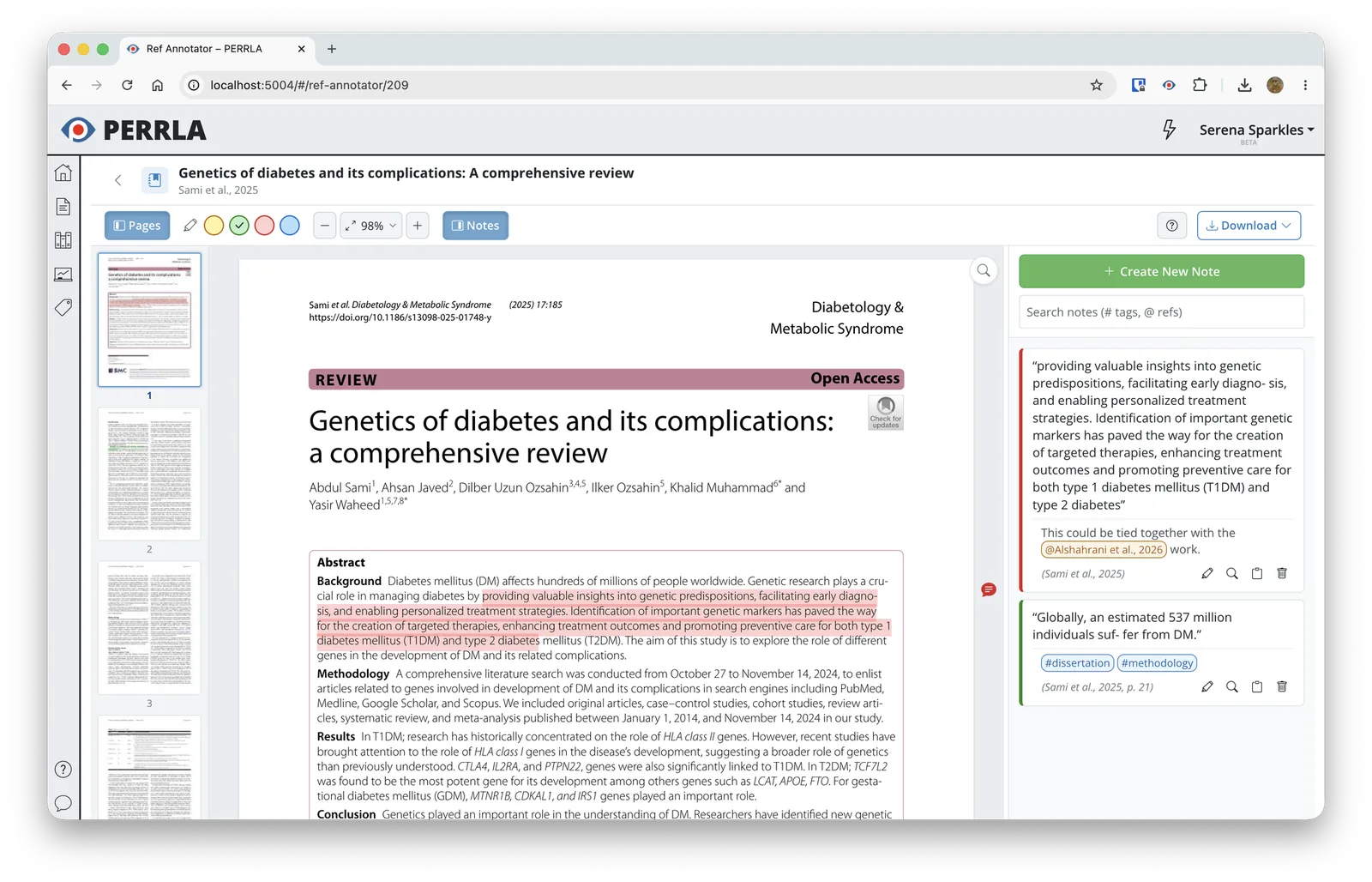
Once a PDF or snapshot is attached to a reference in your library, you can open it directly inside PERRLA Online with the Reference Annotator – no downloading, no switching to another app.
As you read, you mark up the document the way you would on paper. Select any passage and choose from four highlight colors. Add a comment anchored to the specific text that sparked a thought. Drop a standalone note anywhere on the page margin for ideas about the article as a whole. Every note stays attached to its location in the document, scrolling along with the PDF so your thinking always sits next to its source.
Your notes can also do more than sit in the margins. Add a #tag to mark a theme you’re tracking across multiple sources, or type @ to connect a note to another reference in your library. Tag the same theme across three or four articles, and the connections between your sources start to become visible, which is what a strong paper is built on.
Everything you create or highlight in the Annotator is automatically saved as a Research Note, organized by source and ready to use when you write.
Step 3: Write in the new PERRLA Online paper editor
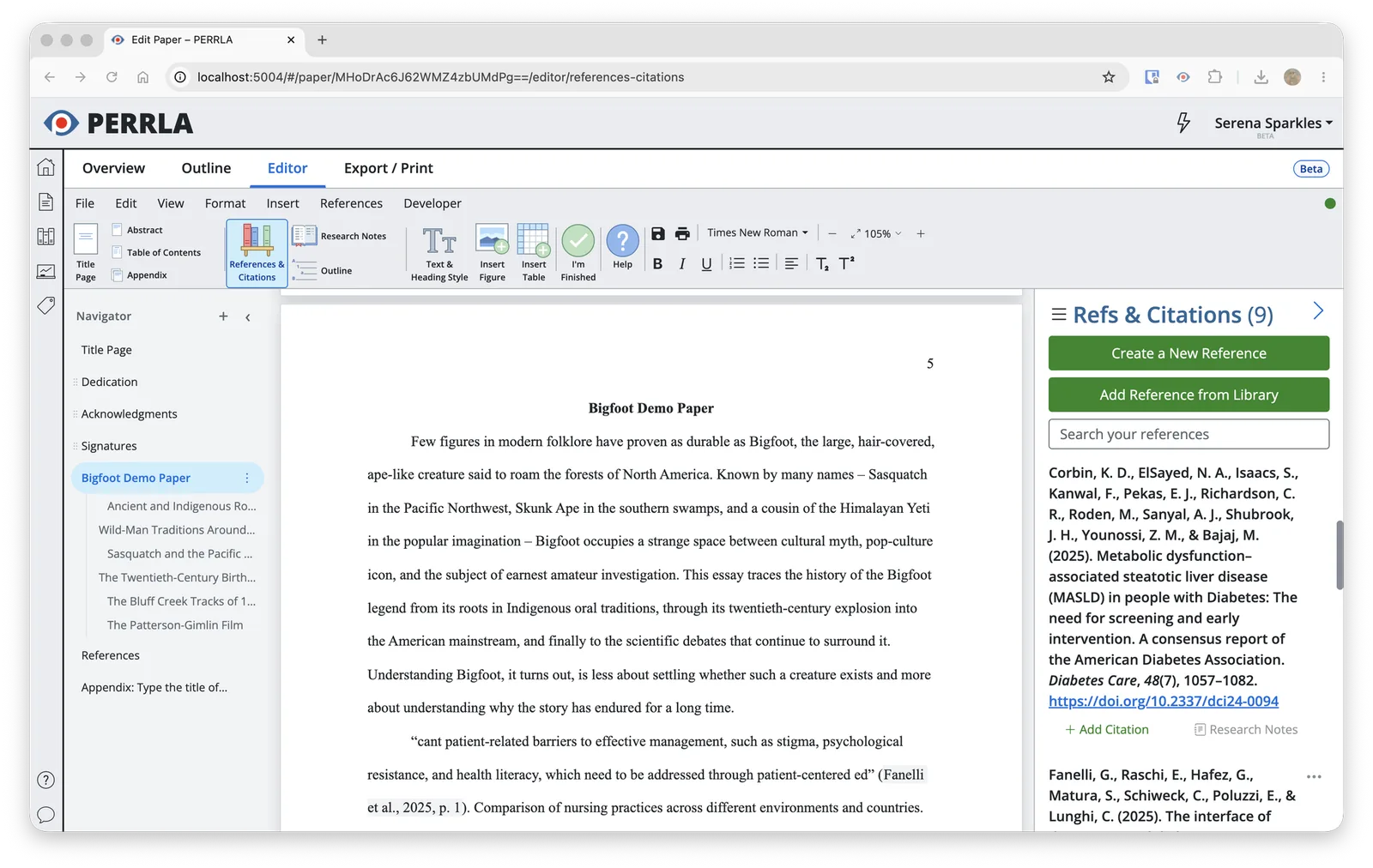
When you’re ready to write, everything you’ve collected is waiting in the new PERRLA Online paper editor. In addition to your references, every highlight, comment, and annotation is there, organized by source and one click away from being dropped directly into your paper.
The new editor itself is a step up from what PERRLA Online offered before. Pages display as true-to-print pages: what you see on screen is exactly what your professor or committee will receive. A navigator panel on the left lists every section of your paper, allows you to add new sections, and lets you jump between them instantly, regardless of how long the paper gets. Zoom lets you pull in close for detailed editing or pull back to see the full page layout. And the editor saves continuously in the background, so your work is never at risk.
For longer papers, the new editor adds auto-generated Tables of Contents, Lists of Tables, and Lists of Figures; landscape pages for wide figures and data tables; and a navigation panel that keeps every chapter, heading, and appendix one click away.
And through it all, PERRLA handles the formatting automatically: every heading, citation, and reference in APA, MLA, or Turabian, built to spec from the first word to the last.
The full workflow at a glance
Browse research sites and click Add to PERRLA to create a reference and save the source automatically.
Open the PDF or snapshot in the Reference Annotator, highlight key passages, and add notes and tags as you read.
Create your paper in the new PERRLA Online editor, pull your Research Notes into the document, and write.
Find it. Annotate it. Write it. Every step connected, and nothing lost along the way.
Getting started
All three features are available now. The PERRLA Chrome Extension is available from the Chrome Web Store. The Reference Annotator and the new paper editor are both in PERRLA Online, and every PERRLA subscription includes access to them all.
AI detection tools don't just miss AI-generated writing — they disproportionately flag students who wrote every word themselves. Here's what the research shows, and what it means for students and schools.
Once you see these four sentence-level patterns, you’ll start spotting them in every piece of academic writing you read. More importantly, you’ll be able to use them on purpose in the papers you write.